Brand and press

ConBridge brand and press resources: logo files, colours and approved texts

Our own marks and the rules for using them.

Logo files

Each file is an SVG. Choose the one that matches the background it sits on.

  • Wordmark

    Wordmark of ConBridge

    Original colours, for white and light backgrounds.

    Download SVG
  • Wordmark, reversed

    Wordmark, reversed of ConBridge

    Light ink, for dark backgrounds. Same paths as the original.

    Download SVG
  • Wordmark, one colour

    Wordmark, one colour of ConBridge

    Takes the text colour of its context, for one-colour printing.

    Download SVG
  • Mark, for dark backgrounds

    Mark, for dark backgrounds of ConBridge

    The standalone mark for small sizes such as icons.

    Download SVG

How to use the logo

The rules follow the ConBridge design system.

Do

  • Use the files above as they are.
  • Keep clear space around the wordmark of at least the height of its first letter.
  • Write the name as ConBridge in text, with a capital C and a capital B.

Do not

  • Do not stretch, rotate, recolour, outline or add a shadow to the files.
  • Do not retype the wordmark in a font or change its spacing. Do not add a slogan to it.
  • Do not use the logo in a way that suggests ConBridge endorses, or is endorsed by, another product or company.

Trademark notices

Colours

The Console uses seven core settings: five colours, a corner radius of 14 px and a balanced spacing density.

  • Accent#19d6ae
  • Background#111c2b
  • Card#1a2b3e
  • Navigation#091320
  • Text#eaf3ff

Corner radius 14px. Density balanced. The wordmark’s own colours are ink #101f34 with a gradient from #09c0c3 to #23e98b.

Descriptor and boilerplate

Use these texts as written when you describe ConBridge.

One line

ConBridge finds known vulnerabilities on the systems you own and lets your AI app fix them with your approval.

Boilerplate

ConBridge inventories the computers, servers and CMS sites you own, matches them against public security advisories and shows what needs action. When you want something fixed, your own AI app does it through ConBridge’s remote MCP server, on one exact target that it selects and the request names, under the approval rules you set.

Console screenshots

Three screens of the ConBridge Console in its light theme.
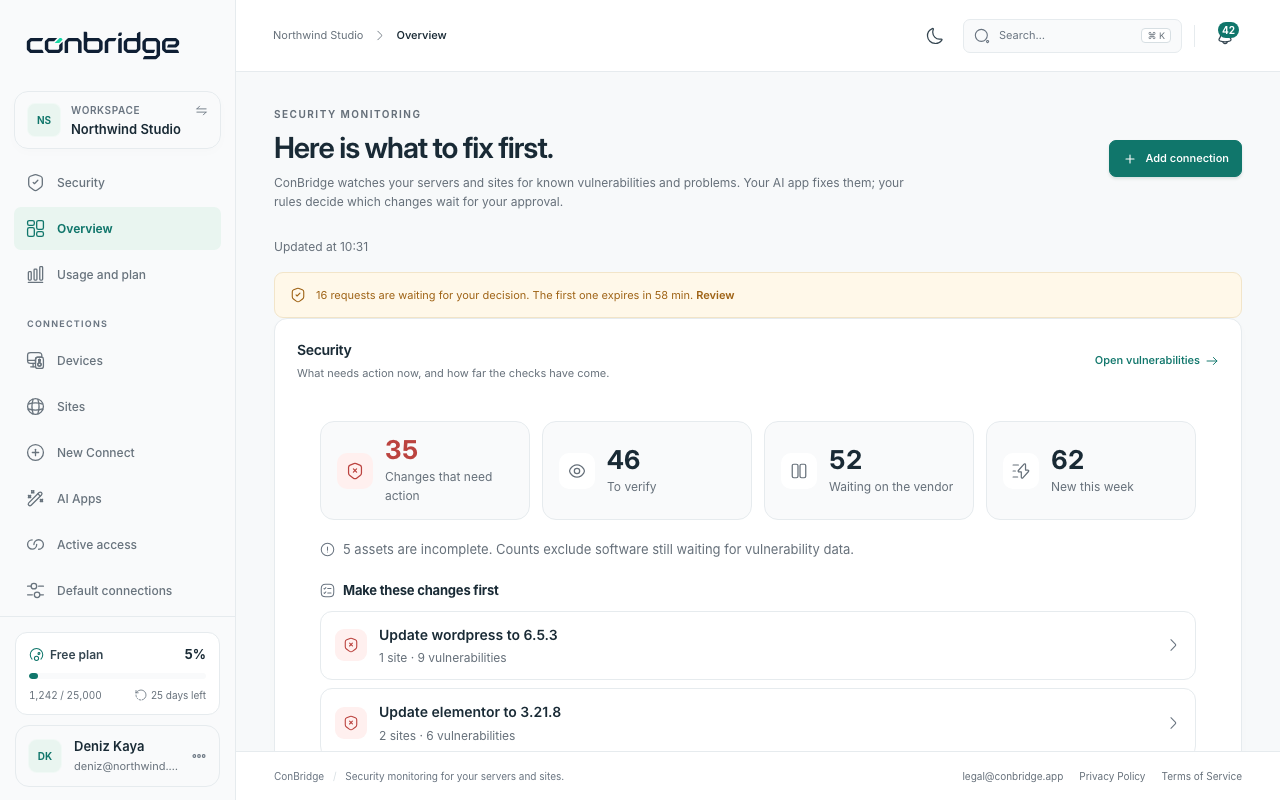
  • The ConBridge Console Overview page for a demo workspace called Northwind Studio, with counts of changes that need action, to verify and waiting on the vendor, and a notice that 16 requests wait for a decision.
    Overview: what needs action first, and the requests waiting for a decision.
    Download PNG
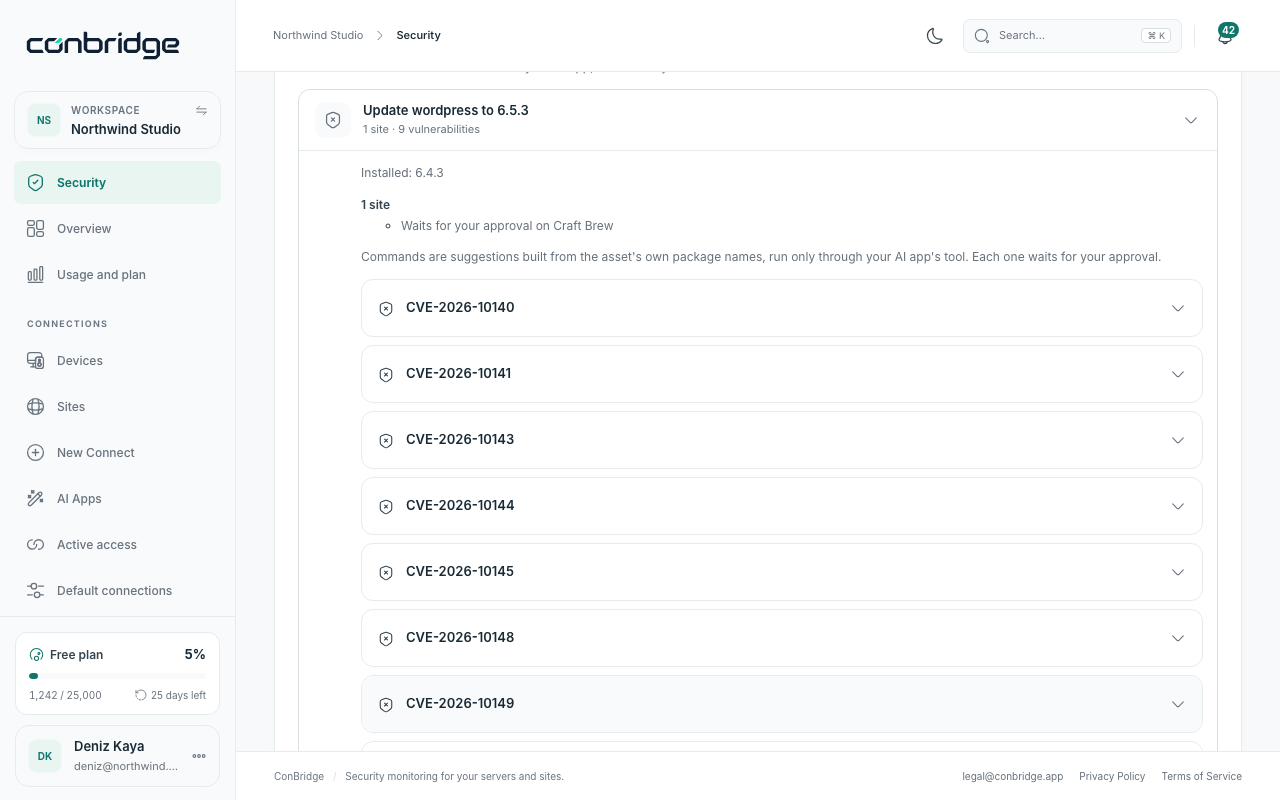
  • The Vulnerabilities page of the ConBridge Console with one fix opened: the installed version, the site it applies to, a note that the change waits for approval and the list of vulnerabilities it closes.
    A fix plan: one change, where it applies and the vulnerabilities it closes. It waits for your approval.
    Download PNG
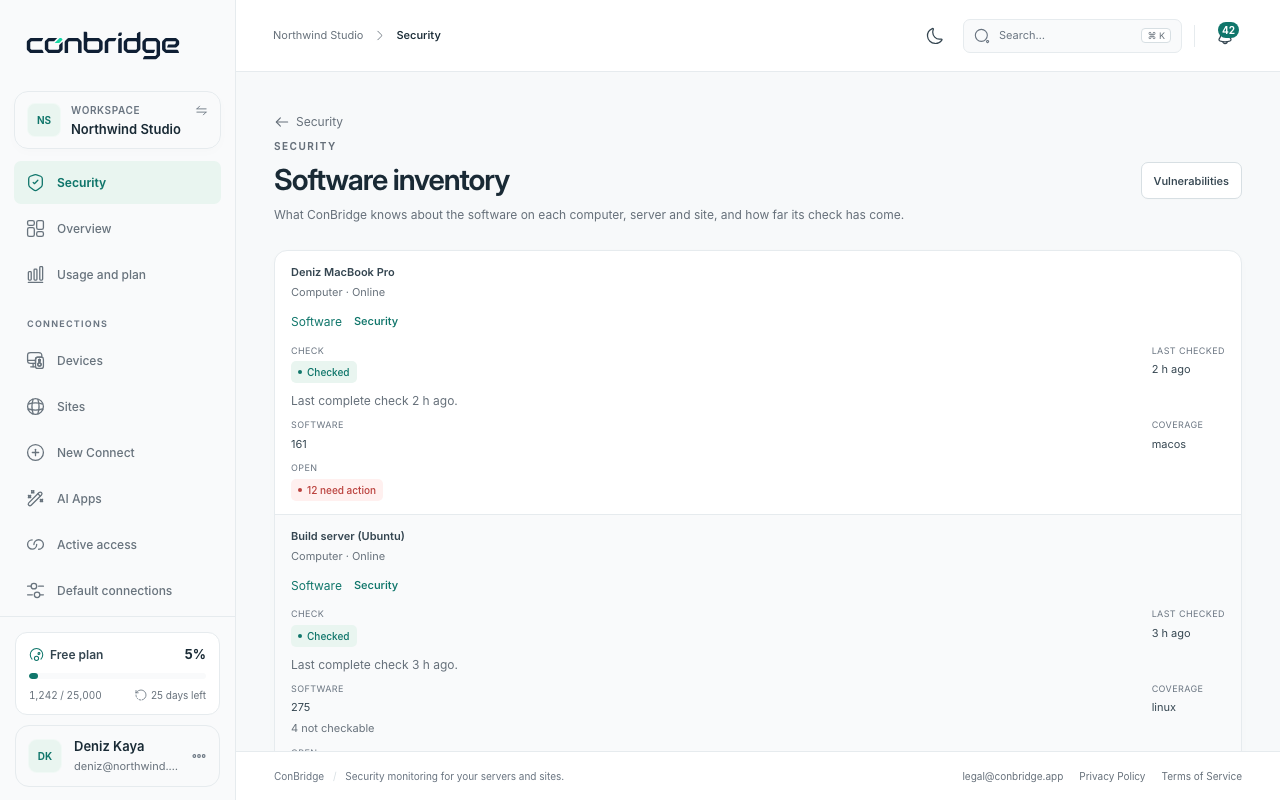
  • The Software inventory page of the ConBridge Console, listing each computer with its check status, when it was last checked, how much software was found and how many changes need action.
    Software inventory: what ConBridge knows about each computer and how far its check has come.
    Download PNG

Usage note: these screenshots come from the Console’s demo mode. Every name, computer, site and number in them is made up, and they do not show any customer’s data. You may use them unchanged to illustrate articles about ConBridge. Do not crop out the Console’s interface to suggest other features, and do not edit the figures.

Press contact

Press and permissions

For press questions and permission to use the marks in another way, write to legal@conbridge.app.